
Guide for Solicitors and Instructing Parties
The screens shown are from an invented example case (Mr John Sample, Example Law LLP). No real patient information appears.
1About the portal
The MSS Records Portal is where Medical Services Solutions (MSS) gives you secure access to the medical records, imaging and reports for your matters. Nothing is sent as an e-mail attachment: you sign in, open or download what has been released to you, and every view and download is recorded.
What you can do on the portal:
- open and read prepared medical records, page-numbered and searchable
- download them, one at a time or all together
- view scans (X-ray, CT, MRI) in your browser, and download them for your own viewer
- ask questions about the records and get answers with page references
- send files back to MSS
- for a firm administrator: see all the firm's cases and give colleagues access
The portal address is https://portal.mssrecords.co.uk. It works in Microsoft Edge and Google Chrome; other browsers work, with small differences noted below.
2The release e-mail
When MSS releases records to you, you receive an e-mail from codes@mssrecords.co.uk. Its subject starts with your own reference, then ours (for example "Your ref RW/AST1203 / our ref 314913").
The e-mail lists what has been released, numbered, and carries an OPEN YOUR RECORDS button. The button takes you to the sign-in for that case. On its own it opens nothing: you still need the client's date of birth and a code (next section).
The e-mail never contains the records themselves, and never shows your e-mail address. If you were not expecting it, do not use it: contact MSS.
3Signing in
Signing in takes three things: the link, the client's date of birth, and a 6-digit code e-mailed to you. Anyone who sees the e-mail but does not know the date of birth cannot get in.
- Press OPEN YOUR RECORDS in the release e-mail.
- Enter the client's date of birth as six digits, day-month-year: 14 March 1985 = 140385.
- A 6-digit code is e-mailed to the same address. Type it in.
- The case opens.
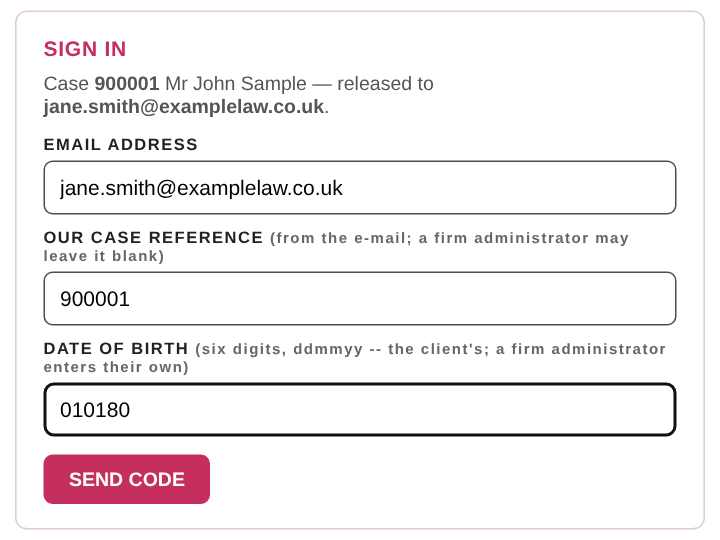
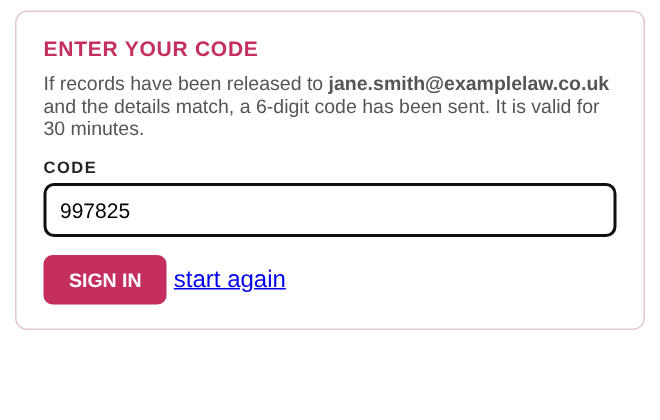
No link to hand? Go to https://portal.mssrecords.co.uk and enter the e-mail address the release was sent to, our case reference, and the client's date of birth.
Firm administrators enter their own date of birth, as recorded by MSS when they were named administrator, not a client's.
Wrong dates: after 5 wrong dates of birth within 30 minutes, that e-mail address is locked for 30 minutes. Every wrong attempt is recorded. If you are locked out and need access sooner, contact MSS.
4Your cases
If more than one case has been released to you, you land on YOUR CASES: one line per case with our reference, the client's name and your reference. Click a case to open it.
YOUR CASES is always in the header, beside your e-mail address and sign out, and at the top of every case screen with the number of cases you hold. Use it to move between cases without signing in again.
Each case shows your reference under its heading ("YOUR REFERENCE: ...") when MSS holds one.
5The case screen
Each case is laid out the same way: MSS's own documents at the top, then nine numbered sections. A section with nothing in it says so; sections marked coming shortly are not in use yet.
| Section | What it holds |
|---|---|
| MSS Documents | The Case Brief, the Imaging Summary and other documents MSS has written about the case |
| 1 · Forms of Authority | Coming shortly |
| 2 · Record Reviews | Coming shortly |
| 3 · Original Medical Records | The first set of records from each provider (GP, hospital, physiotherapy and so on), prepared by MSS |
| 4 · Updated Medical Records | Later records from a provider already held, filed separately so you can see what is new |
| 5 · Scans and Other Files | Scans (X-ray, CT, MRI), photographs and any file that is not a PDF |
| 6 · Medical Reports | Expert reports released to you |
| 7 · Addenda | Addenda and replies to questions |
| 8 · Invoices | Coming shortly |
| 9 · Statement of Account | Coming shortly |
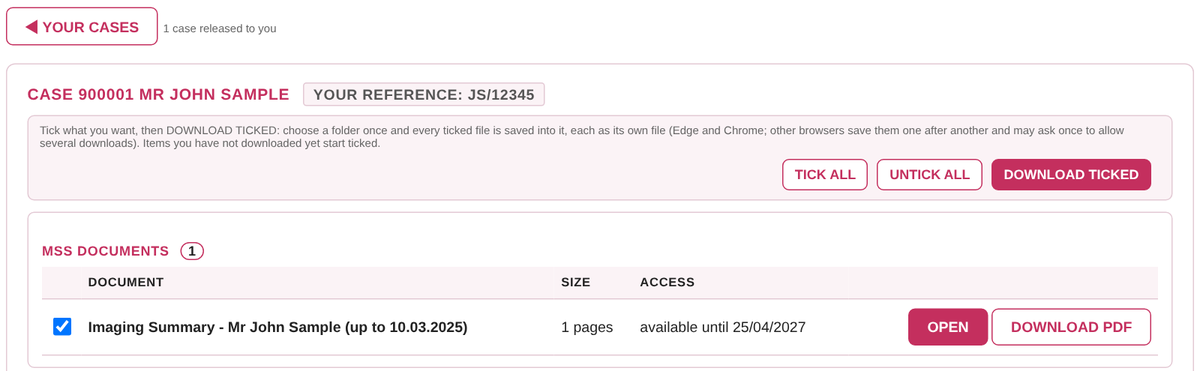
Each item shows its name, its size or number of pages, the date it is available until, and when you last downloaded it.
6Opening and downloading
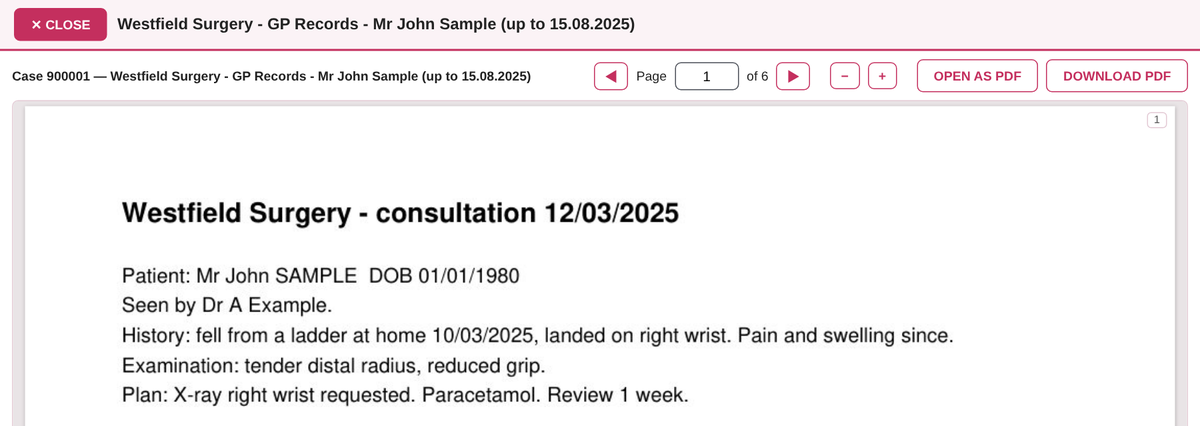
Every record has OPEN and DOWNLOAD PDF side by side.
- OPEN shows the record in a panel over the list. Scroll, search and read it there; CLOSE brings the list back.
- DOWNLOAD PDF saves that one record to your Downloads folder, like any download.

Several at once — DOWNLOAD TICKED. Every item has a tick box; items you have not downloaded yet start ticked. TICK ALL and UNTICK ALL sit beside the button.
- Tick what you want and press DOWNLOAD TICKED.
- Edge or Chrome asks for a folder. Open Downloads, click New folder, name it (for example the case reference), open it and press Select Folder.
- Allow the browser to save to that folder if it asks.
- Every ticked file is saved into the folder under its own name. The portal says how many were saved and names any that failed.
Do not pick Downloads, Desktop or Documents itself: the browser refuses those ("contains system files"). A new folder inside them is fine.
Other browsers (Firefox, Safari) save the files one after another instead. If only the first arrives, allow the site to download multiple files and press the button again.
After a download, each item shows downloaded with the date and time.
7Large records
Very large record sets are made smaller for the portal so they download in reasonable time and fit within e-mail and system size limits. The original stays with MSS, unchanged.
- Over 200 MB: a lighter copy is released. Pictures inside the record (scanned pages, photographs) are stored in greyscale at a lower resolution; every page, the page numbers and the searchable text are kept.
- Still over 250 MB: the lighter copy is split into volumes of no more than 250 MB each, named "… – Volume 1 of 3 (pages 1–901)" and so on. Each volume keeps the page numbers of the whole set, so a page reference is the same whichever volume you open.
If you need the full-resolution original of a page or a set, contact MSS.
8Scans and imaging
When scans are released you get two things: the Imaging Summary in MSS Documents, and the scans themselves in section 5.
The Imaging Summary is a PDF MSS makes from the scans: a cover listing every scan by provider, then for each provider its radiology report(s) and full-page images (every view of an X-ray; one image per series of a CT or MRI). Read it like any other record.
The scans (section 5) have three ways in:

| Button | What it does | Best for |
|---|---|---|
| VIEW | Opens the full scan viewer in a new tab: scroll through slices, adjust contrast, zoom, measure, view in other planes | Looking at the scans properly |
| QUICK VIEW | A simple page of the images | Slow connections, a quick look |
| DOWNLOAD | Saves the scans to your computer | Your own viewer, or passing to an expert |
Two downloads are offered: Scans with viewer (a zip that opens in its own viewer on a Windows PC, no software needed) and Dicom Files for Import (the raw scan files, for importing into a hospital or radiology system).
9ASK — questions about the records
ASK answers questions about the records released to you on that case, and says which pages the answer comes from.
- Type a question in the ASK box on the case screen, for example "When was the first GP visit after the accident?" or "Is there any previous back pain?".
- The answer appears with page references, such as [GP Records p.14]. Click a reference to open that page.
- Ask follow-up questions; ASK remembers the last few exchanges. There is a daily number of questions per person; the box shows how many are left today.

ASK reads only the records released to you on that case: nothing else, and nothing from the internet. It can miss things or be wrong, so check the pages it cites before relying on an answer.
Your question's wording is not kept; the portal records only that a question was asked.
10Sending files to MSS
You can send files to MSS through the portal instead of by e-mail: further records, photographs, letters, or a whole folder (for example injury photographs sorted by date).
- On the case screen, find the Send files to MSS box.
- Choose files or a whole folder (or drag them onto the box), then press SEND TO MSS.
- Every file is virus-checked on arrival. Programs and files with macros are refused.
- MSS is told straight away, checks each file and then adds it to the case as received from you.
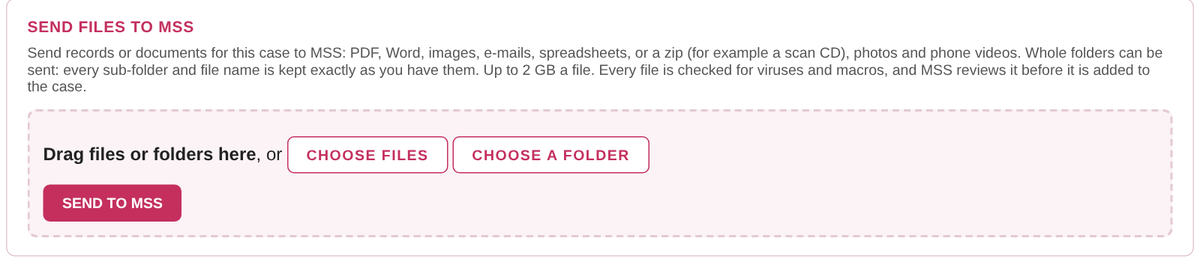
The limit is 2 GB per file. Folders keep their structure exactly as you sent them.
11Firm administrators
A firm administrator sees every case of the firm that has something released on the portal, and decides which colleagues can see which case. MSS names the administrator(s) for each firm.
Employees see only the cases MSS released to them, plus any case an administrator gives them.
As administrator, on YOUR CASES:
- WHO HOLDS WHAT shows, for each case, which of your colleagues can see it.
- ASSIGN gives a colleague access to a case. They must have an address at the firm's own e-mail domain, or one MSS has approved. They are e-mailed to say the case is theirs.
- WITHDRAW takes that access away again.
Every assignment, withdrawal and administrator sign-in is recorded in the firm's log and on the case. A case with nothing released never appears, even to an administrator.
12Security, access period and records kept
The records are confidential medical information released for your matter only.
- Who can get in: only the person the release was sent to, and colleagues their firm administrator assigns. Signing in always needs the client's date of birth and a fresh code sent to that person's e-mail.
- How long: each release shows available until with its date. After that it is no longer on the portal; ask MSS if you need it again.
- What is recorded: every sign-in, every record opened or downloaded, every scan viewed, every question asked (not its wording), and every file sent in.
- Withdrawal: MSS can withdraw a release at any time, for example if it was sent to the wrong person.
Please download only what you need, keep downloaded records secure, and do not forward the release e-mail: a colleague who needs access should be assigned by your administrator, or asked for from MSS.
13Help
| Problem | What to do |
|---|---|
| No code arrives | Check your junk folder for an e-mail from codes@mssrecords.co.uk, then ask for a new code |
| "Date of birth not recognised" | Enter it as six digits, day-month-year (140385). Firm administrators use their own |
| Locked out | Wait 30 minutes, or contact MSS |
| DOWNLOAD TICKED says "contains system files" | Make a new folder inside Downloads and choose that (see Opening and downloading) |
| Only one file downloaded | Allow the site to download multiple files, then try again |
| A scan will not open in VIEW | Try QUICK VIEW, or download "Scans with viewer" |
| A colleague needs access | Your firm administrator can assign the case, or contact MSS |
| Something released that should not have been | Do not open it further; contact MSS straight away |
Medical Services Solutions Ltd · Ground Floor, The Annexe, 3 Harman Close, London NW2 2EA
T 020 8205 0000 · E info@mssgroup.co.uk · W www.mssgroup.co.uk
Please quote our case reference when you contact us.